Contractor Guide — How to Use CutGo
Step-by-step guide for cutting workshops: register your company, set up pricing, manage your material catalog, and process orders from customers using CutGo's sheet layout calculator and cut optimizer.
1. Registration & Account Setup
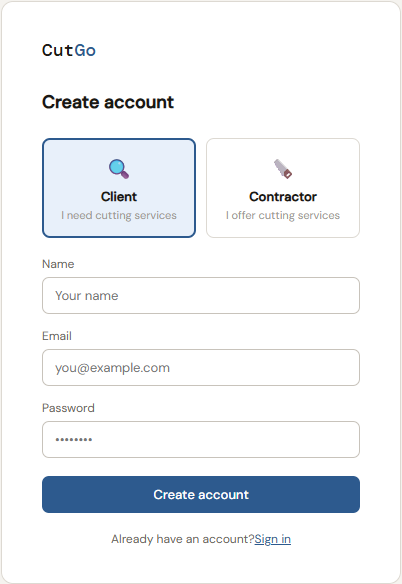
To start receiving cut orders generated by CutGo's sheet layout calculator, create a contractor account. On the sign-up page, select Contractor — I offer cutting services, then enter your name, email, and password.
After confirming your email, complete the contractor registration form. This information is shown to customers when they compare quotes after running cutting optimization:
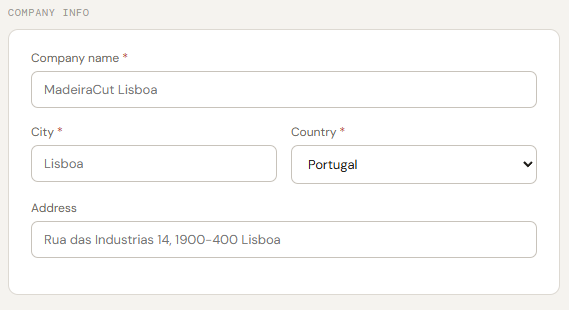
- Company name, city, country, address — your workshop location visible to customers
- Phone & email — how customers and the CutGo team can reach you
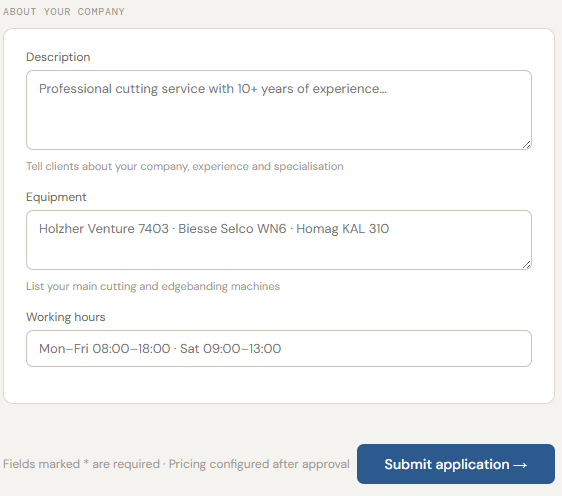
- Description — tell clients about your specialisation and experience with panel cutting
- Equipment — list your cutting and edgebanding machines
- Working hours — when you accept orders
2. Setting Up Your Prices
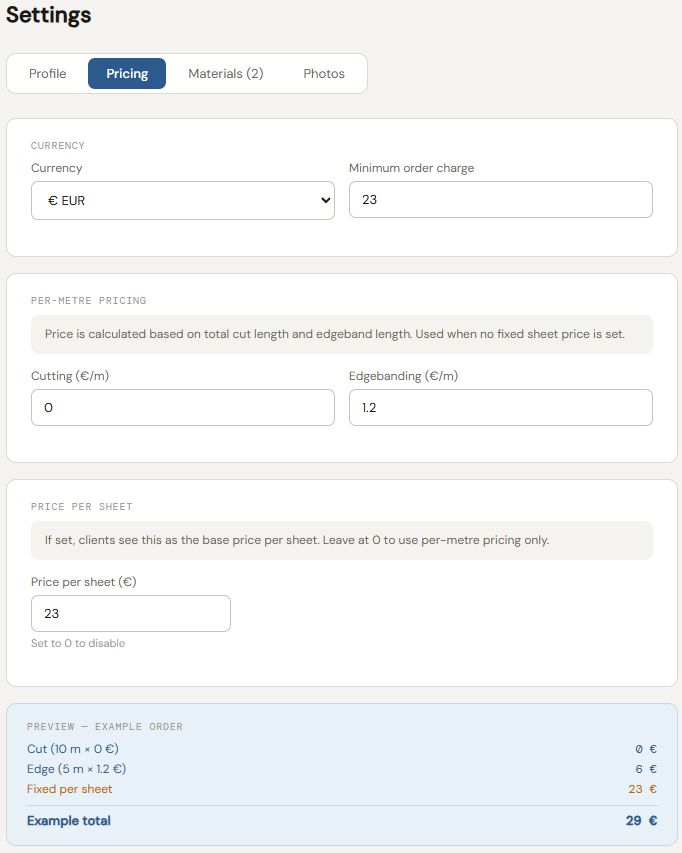
Once approved, go to Settings → Pricing to configure how the cut optimizer calculates quotes for your workshop. Customers see your estimated total instantly after running the sheet layout calculator.
- Currency & Minimum order charge — set your working currency and the lowest order value you accept
- Cutting (€/m) — your price per linear metre of cut
- Edgebanding (€/m) — your price per metre of applied edge tape
- Price per sheet — fixed price per sheet; set to 0 to use per-metre pricing only
- Complexity surcharge — optional uplift when a sheet has more parts than the threshold; the total is shown as a separate line on every quote
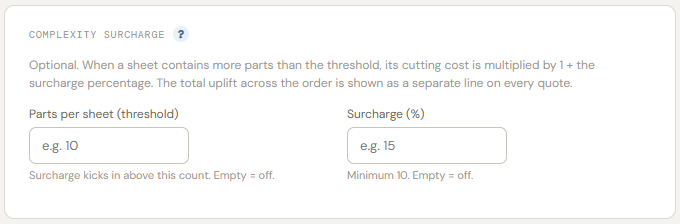
The Complexity Surcharge section lets you charge more for dense cut plans. Set a Parts per sheet threshold and a Surcharge % — when any sheet exceeds the threshold, its cutting cost is multiplied by 1 + surcharge / 100. Leave both fields empty to disable.
3. Material Manager
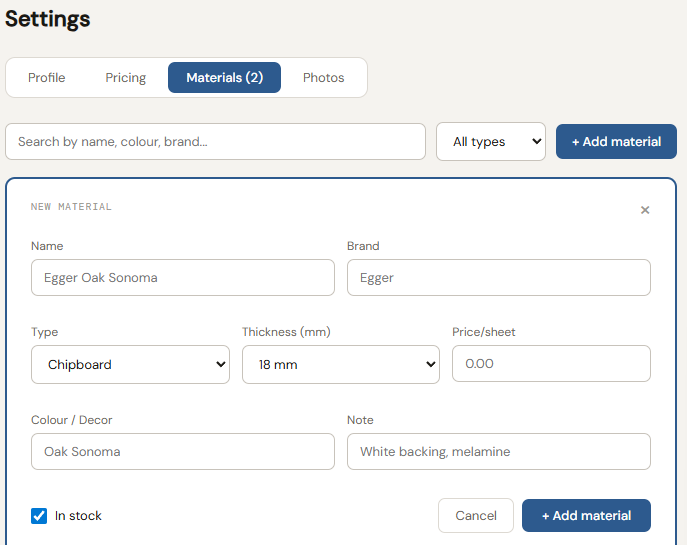
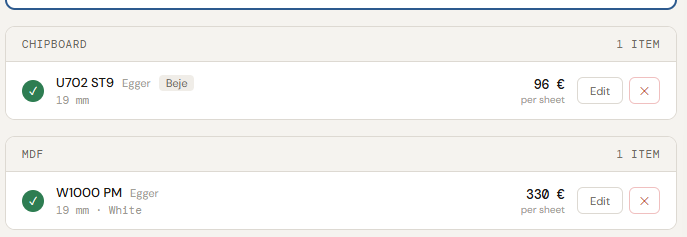
Go to Settings → Materials to build your material catalog. Customers filter by material type and thickness in the cut list calculator — only your listed materials match their cutting optimization requests.
- Click + Add material and fill in: name, brand, type, thickness, and price per sheet
- Colour / Decor and Note help customers identify the exact panel variant
- Check In stock to make a material visible to customers; uncheck to hide it without deleting
4. Receiving & Processing Orders
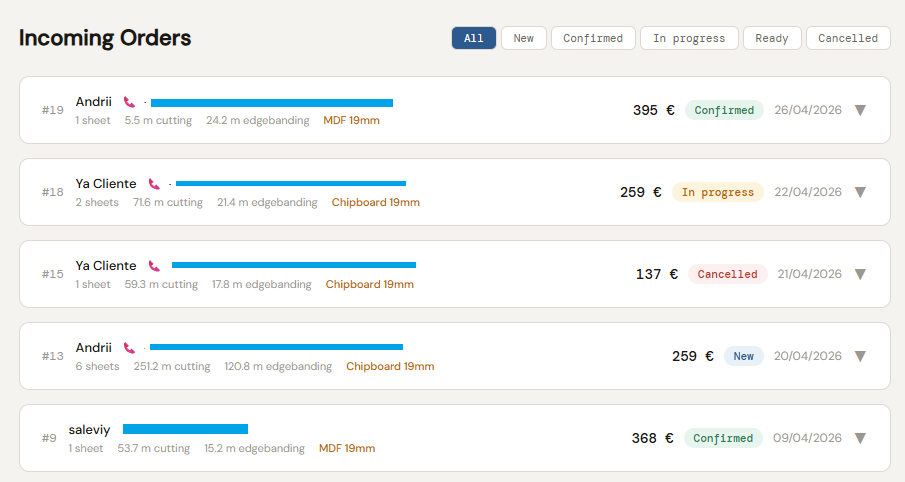
All incoming orders appear in your Incoming Orders dashboard. Each order is generated directly from a customer's cut optimizer session and includes the full cutting plan, parts list, material specification, and an automatic price estimate.
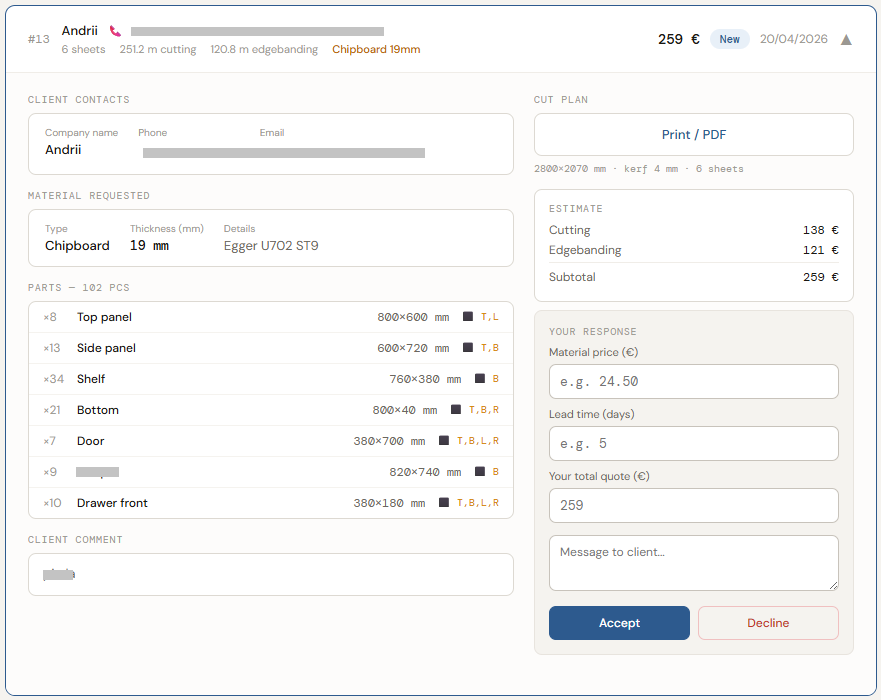
Open an order to see all details: client contacts, material requested, the complete parts list with sizes and edgebanding, and the cut plan. In the Your Response panel you can adjust Material price and Lead time before confirming.
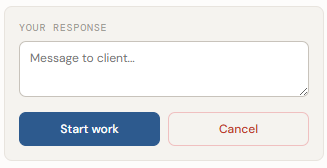
- Click Accept to confirm — the customer receives an immediate email notification
- Click Decline if you are unable to fulfil this order
- After accepting: click Start work when cutting begins
- Click Ready when the order is complete — the customer is notified to arrange collection or delivery
5. Order Cancellation Rules
CutGo has a straightforward cancellation policy to keep the cut optimizer marketplace fair for both customers and workshops.
| Who cancels | When it is allowed |
|---|---|
| Customer | Only while status is New — before the workshop accepts the order |
| Workshop | At any stage: New, Confirmed, In Progress, or Ready |
To cancel: open the order in your dashboard and click Cancel in the response panel.
6. Email Notifications
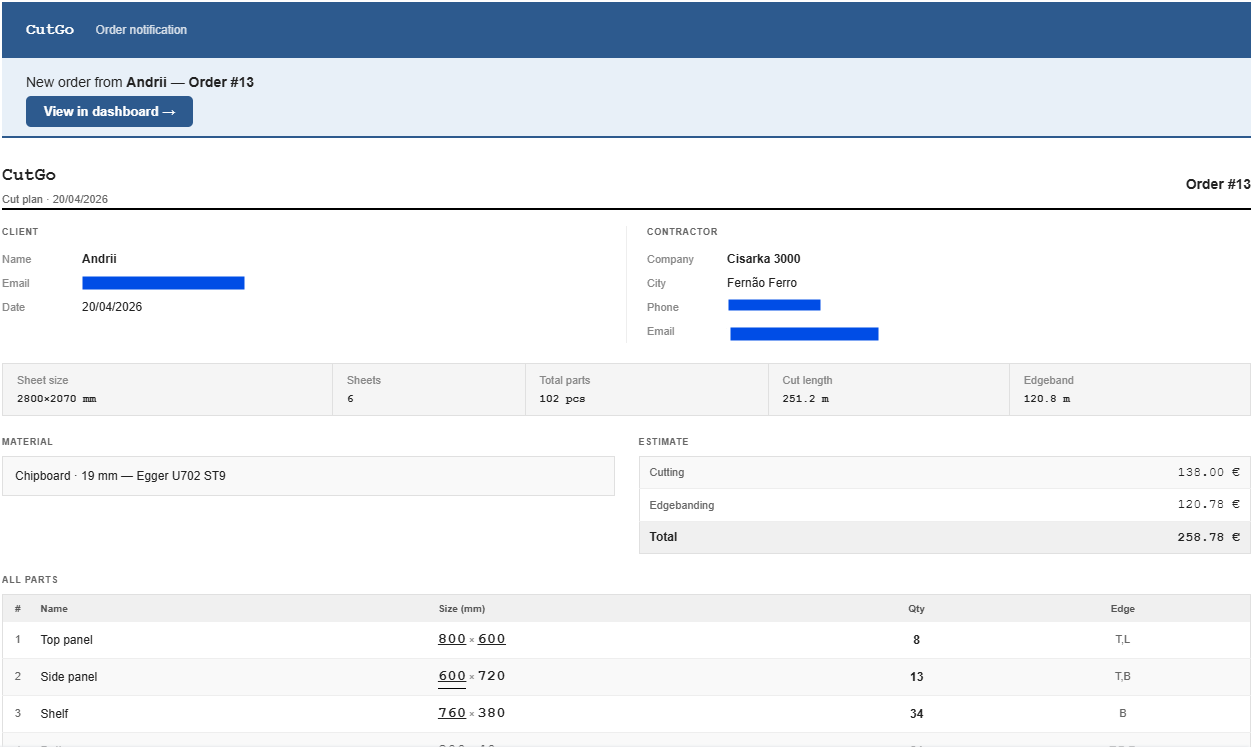
CutGo sends automatic emails for every key order event. When a customer submits a job from the sheet layout calculator, you receive a full notification instantly — no need to check the dashboard manually.
- New order received — instant email with the complete cut plan, parts list, material, and estimated total
- Customer cancels a New order — instant notification so you can free the slot for other work
- Your status updates — customers receive emails for every status change you make (Confirmed, In Progress, Ready)
Each email includes a View in dashboard → button that opens the order directly. Emails are sent in the customer's language — CutGo supports EN, DE, ES, PL, PT and RU.