Drilling cards and shop documents
A project in the cabinet designer ends as paper — or as PDFs that behave like paper. This page lists each document, what is on it, where it is made and who it is for: the drilling cards and router templates for the bench, the cutting map and parts list for the saw, the stone order for the stonemason, and the photograph, the link and the offer for the customer.
Drilling cards
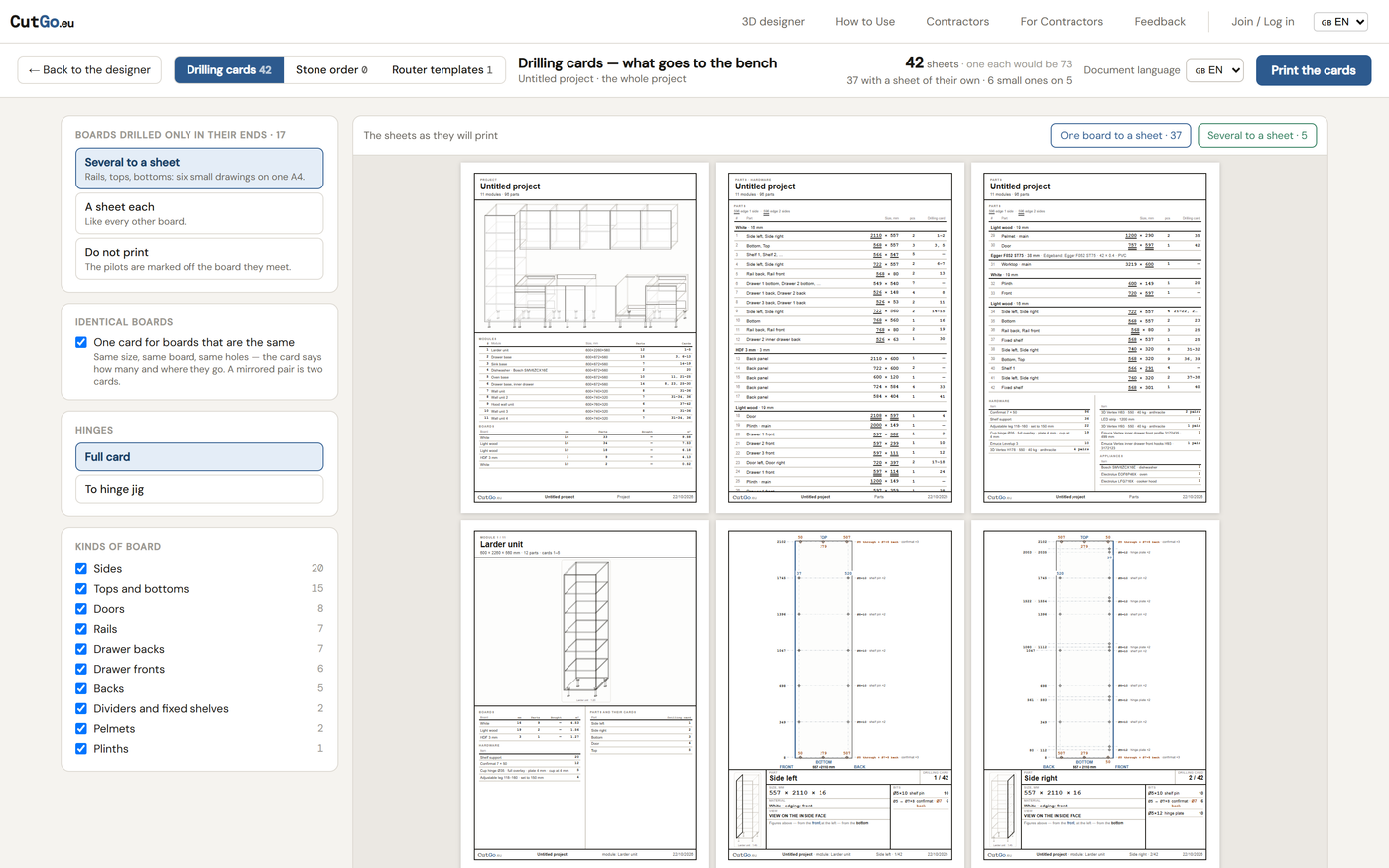
Drilling cards in the toolbar opens the plan page at /designer/drilling. It works without an account and on an unsaved project. On the left are the settings; on the right every part, by module, with a tick and a note saying where it went: its own sheet, a group sheet, the card of another part, not printed, or off by a rule.
- One card per part is the default. Parts that are the same — the same role, size, board, banding and holes — can be merged: one card marked × 5 with the list of modules it serves. A mirrored pair is not the same part.
- Edge-only parts — a rail, a shelf drilled only in its ends — can have their own sheet, share a sheet six to a page, or be left out.
- Roles can be switched off: drawer fronts go out without drilling if the shop drills them on the jig.
- The header counts the sheets: 30, where one each would be 56.
Each card draws the part at scale with every hole: its diameter and depth, its distance from the edges, the face it is drilled from — the inside face as a rule, the back face dashed with a warning to turn the part over, the edge with a square mark. Holes are listed by purpose: shelf pin, confirmat, hinge plate, hinge cup, runner, leg plate, hanger, LED wire. A confirmat shows as one line, Ø5 → Ø7 × 8. The groove for the back and the cut-outs — a duct hole, a vent, a notch, a hanger notch, an LED groove, a wire channel — are drawn with their sizes; a cut by hand is written as such. A part whose size was edited by hand is flagged: the generator did not move the holes, check on the bench. A module's picture at the top of its cards shows the part in place, with the legs it stands on.
The cover sheet lists the project, the modules with their sizes, the parts and their cards, the boards, what is bought to size, the hardware and the appliances.
The cards print in the document language you choose beside the button — Portuguese sheets from an English screen, say — independent of the interface.
Router templates
The second tab on the same page makes templates for the laser or the CNC: for every side that carries Gola notches, a strip of the part along that edge with all its notches, 200 deep from the router's line by default; the depth and the length can be set per template. They go out as SVG in millimetres or DXF R12, the contour on one layer and the numbers on another, so a template is cut once and used for every side like it.
The stone order
The third tab lists everything in stone: an island's top, its waterfall ends and its support panel; a worktop and a splashback in solid surface or stone on an ordinary run. Each piece gets an A4 landscape sheet drawn as a plan — the front at the bottom, the datum at the front left corner — with the overall size in black outside the piece and the cut-outs for the sink, the hob and the tap dimensioned in blue to their centres from that one datum. A small map shows which module the piece belongs to, with only the bought parts of that module, so an island reads as an island and not as a muddle of boxes. The bought fronts stay out of it.
The cutting map and the parts list
Send to cut plan hands every part to the cut optimizer on the home page: its board, its sawn size in whole millimetres, long side along the board, its grain, and which of its four edges is banded with which band. Doors and drawer fronts are rounded down so the joints stay open; a laminate worktop comes in as a board of its own with its blank; stone and appliances do not come at all, they are bought. The optimizer lays the parts out on the sheets from your stock or on the sizes you type, by material or by speed, shows the waste and the offcuts worth keeping, and prices the job with the workshops on the map.
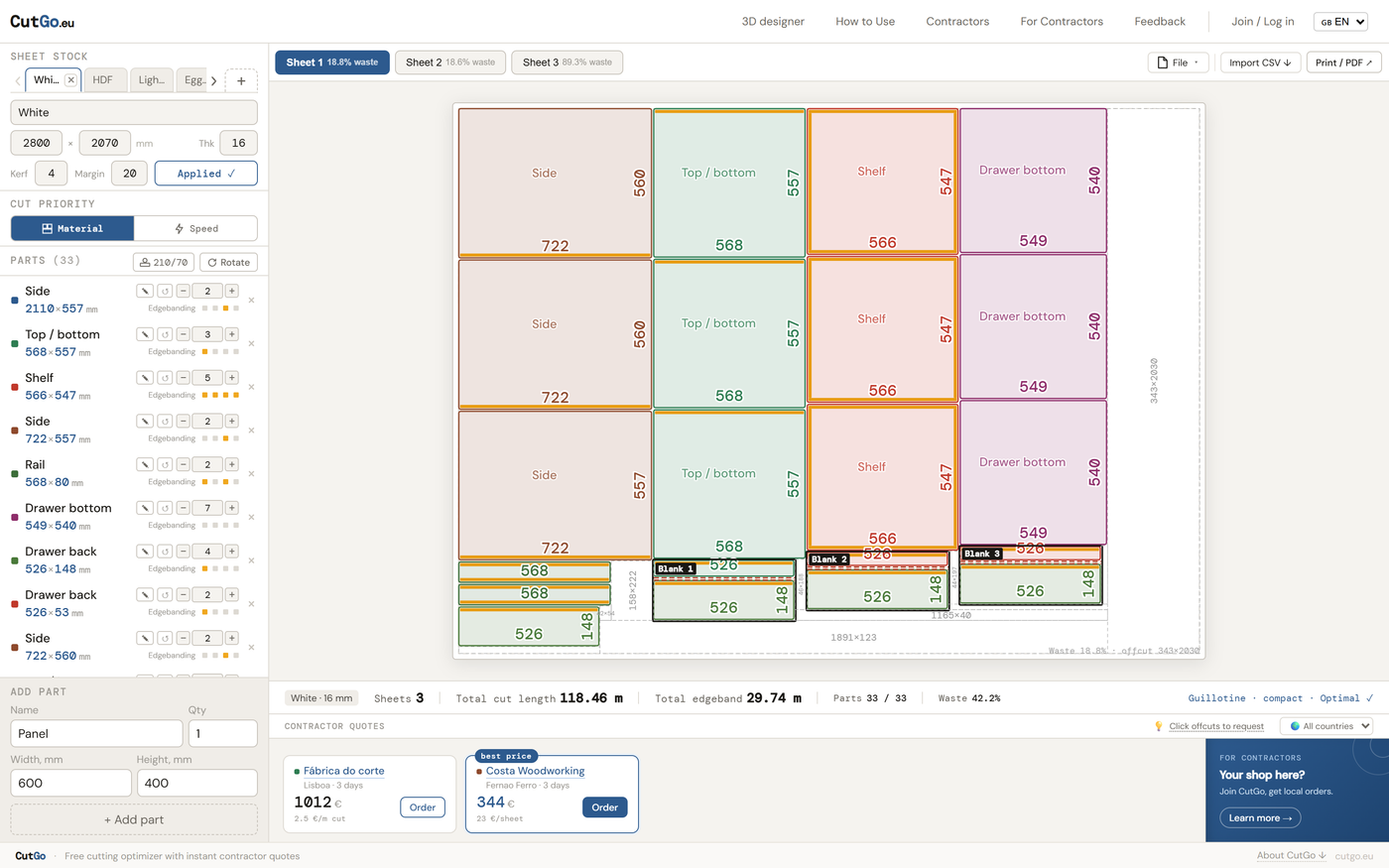
Print / PDF makes the shop's document: a summary page, then one page per sheet with the cutting map, each part numbered and sized, the banded edges marked and a strip of the material's decor on every page; the parts table with quantities, banding per edge, paint by RAL where a front is painted, and the notes the generator wrote for the shop — a cut by hand, a mitre, a glue-up. The same map goes in the order email to the workshop and in your copy of it. Parts that will not come out of the sheet are listed, not hidden.
Drawings
Open the drawings in presentation mode gives each wall of a kitchen as an elevation: the run seen flat from the front, the boxes with their widths in a chain along the bottom, the overall width, the wall units chained along the top, the levels — floor to worktop, floor to the underside of the wall units — and the fronts. A drawing per wing, for a kitchen on two walls.
The photograph
Save photo in presentation mode: a PNG at 2800 px on the long side, as it is or landscape or portrait, with whatever is on — open doors, the sizes written on the furniture, the room's walls — your workshop's letterhead over it and your address and phone under it. Soft shadows, ambient occlusion, a floor and a wall are switched in the toolbar; turn them off on a slow machine.
The customer's link
Signed in, Make a link in presentation mode publishes the saved project at a page of its own: the furniture in 3D with your logo over it, to turn and zoom; tap a door or a drawer and it opens, the whole row of leaves together; a tape measure between any two points; the sizes on or off, the light, the floor and the walls. It runs on a phone. Pasted in a messenger the link shows the photograph. Remove the link closes the page.
The offer
Make a proposal in the Summary tab makes the commercial offer from the bill: the modules or the trades or every line, with your markup, labour, discount, VAT, advance, lead time and validity from your money settings, in the customer's language. Up to four variants — the same project with different settings — side by side. Send to client publishes it at a link of its own: the 3D, the variants with their totals, the materials, the table, the terms and your contacts, with a Download PDF button; the PDF is printed on the server when you send. Stop sharing takes it down.
Read on: the cabinet designer, projects, stock and prices, how to use the cut optimizer.