The cabinet designer
The constructor at cutgo.eu/designer draws furniture the way a workshop builds it: a kitchen run, a fitted wardrobe, a bookcase or a TV unit, each as a set of panels with their joints, hinges, runners and holes. Everything you draw becomes a cut list, a bill of materials and a set of drilling cards, and goes on to the cut optimizer and to a workshop on the map. It runs in the browser, needs no download, and no account to try. This manual walks through the screen, the wizard, the tools and the panels, and what comes out at the end.
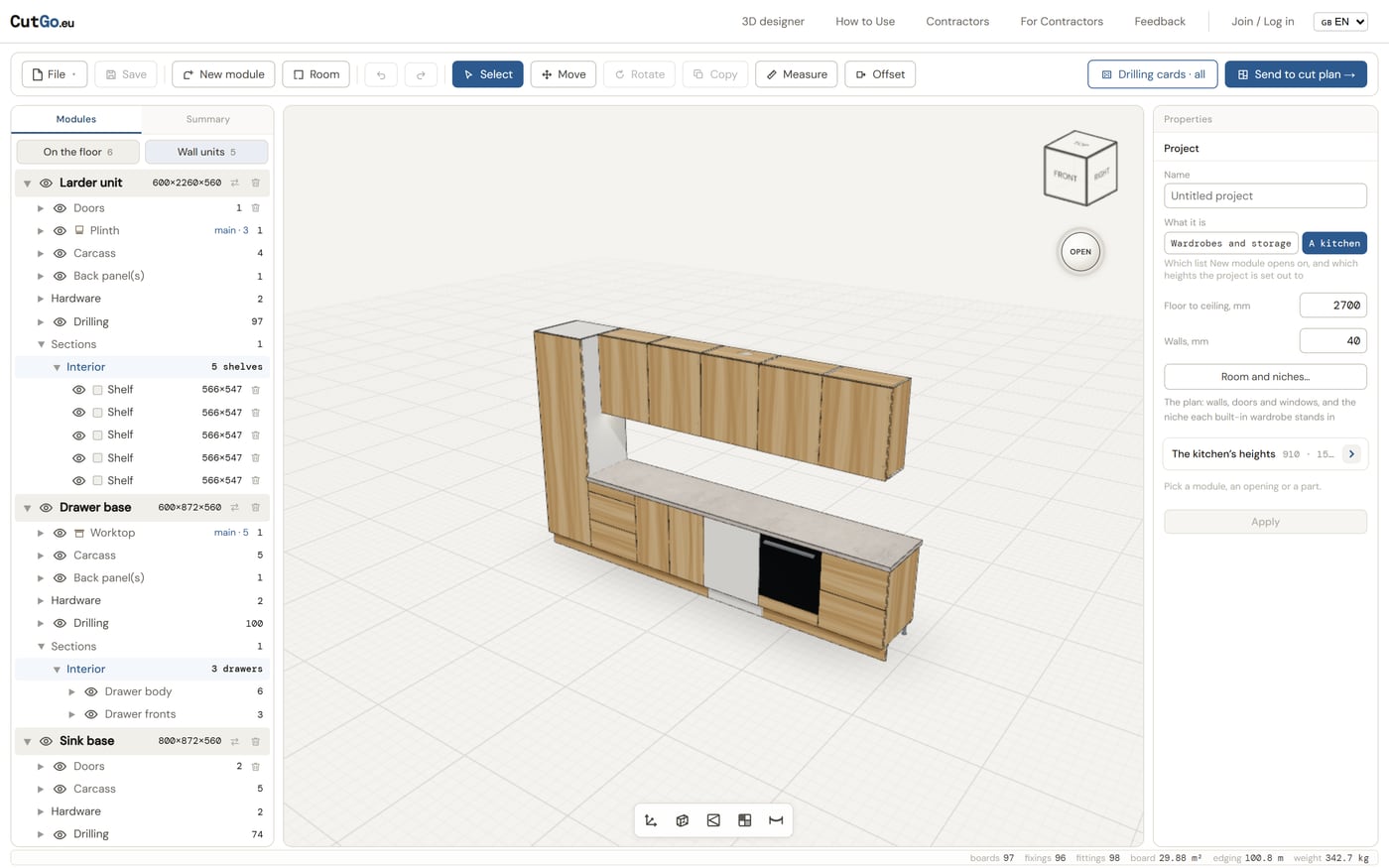
The screen
- The toolbar along the top: File (new project, open, save, save as), Save, New module, Room, undo and redo, then the tools — Select, Move, Rotate, Copy, Measure, Offset — and on the right the warnings counter, Drilling cards and Send to cut plan.
- The tree on the left, under the Modules tab: every module in the project with its layers — doors, plinth, carcass, back panel, hardware, drilling — and its sections, down to each shelf and drawer. A kitchen's tree is split into On the floor and Wall units. An eye hides a layer or a part; a bin removes it; the ⇄ beside a module swaps it for a similar preset.
- The Summary tab beside Modules: the boards in m² and parts cut, the edge banding in metres, every piece of hardware, the appliances, and the cost once prices are in. Presentation and Make a proposal live here too.
- The viewport in the middle: drag to turn, scroll to zoom, right-drag to pan. The cube in the corner turns the picture to a named side. The dial under it opens every door and drawer at once, so you can look inside. The row of small buttons at the bottom switches the views: axes, see-through, opening marks, by board, sag.
- The properties panel on the right shows whatever is picked — the project, a module, a section, a part, a piece of hardware — as a stack of cards.
- The status bar along the bottom: boards, fixings, fittings, board area, edging and weight of what is picked, or of the whole project.
Starting a project
The first New module asks what you are building, once:
- A kitchen — a run of standard boxes: bases, drawer bases, sink and oven bases, dishwasher housings, larders, wall units, hoods and islands, set out to the kitchen's heights.
- Wardrobes and storage — furniture built to a room: wardrobes, bookcases, chests of drawers, hall units, TV units.
- The room first — draw the walls, doors, windows and niches on a plan, then put a kitchen or wardrobes into it.
Every module you add afterwards comes from that family's list. A kitchen is also asked for its lines on the first box: the work surface, where the wall units start, where the tops finish and the ceiling. Every box follows those lines; moving a line rebuilds every box to it.
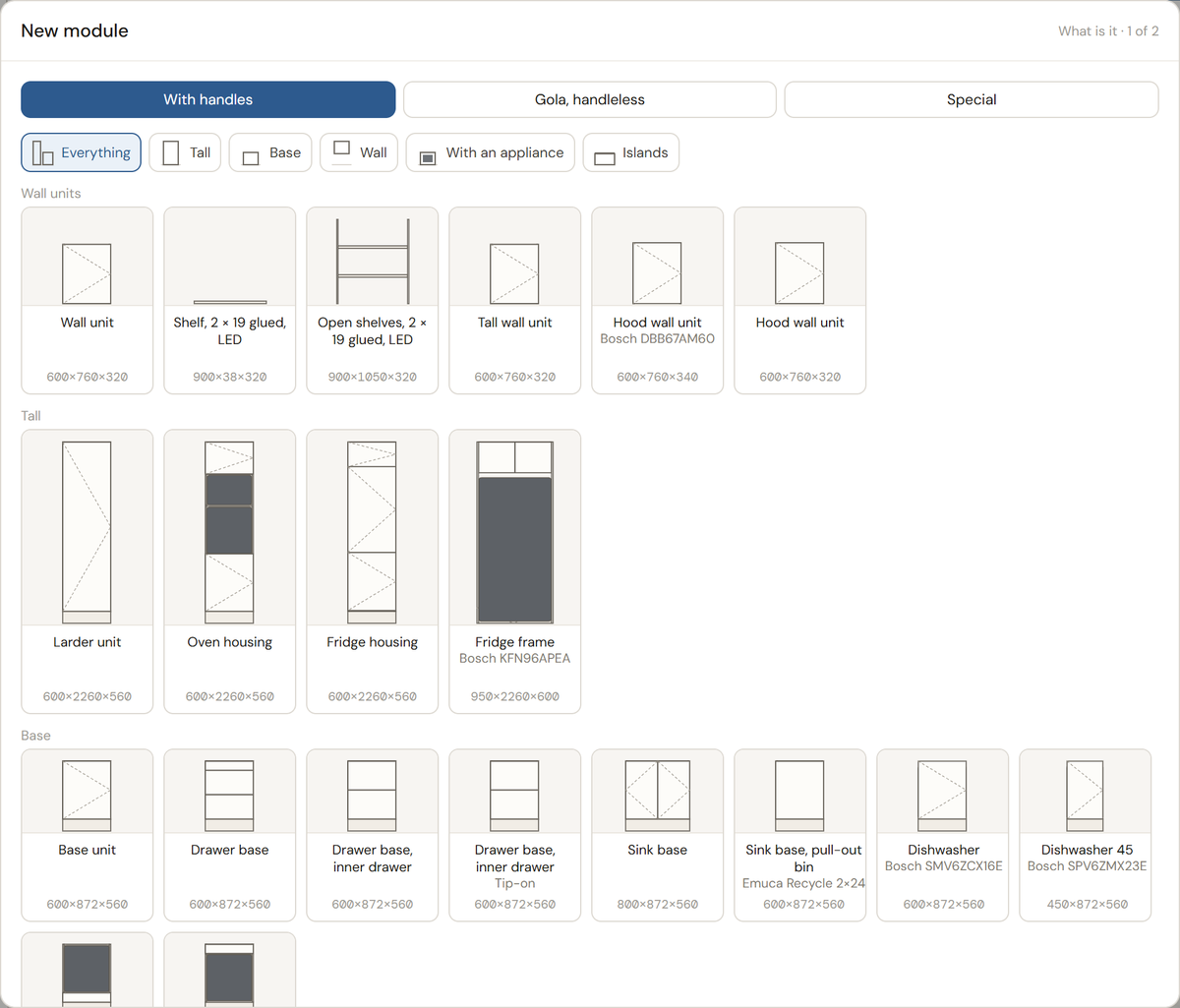
The wizard and its presets
Pick a preset; the card draws what it will build at its own sizes. The filters narrow the list: Everything, Tall, Base, Wall, With an appliance, Islands. A second page holds the Gola, handleless versions of the same boxes, and a third, Special, whole pieces made of several modules — a coffee station, for instance.
Then the sizes: width, height and depth of the whole module, outside measure; for a kitchen box the legs (100, 120 or 150) and how many drawers or shelves; for a wardrobe the plinth. Made from is the carcass board, Fronts the board of the doors and drawer fronts — the plinth follows the fronts' board. A base box offers a worktop over it, laminate 38 or solid surface 20; a wall unit a pelmet under the run with an LED strip in it. The card at the bottom tells you the clear inside of the box, how its back is held, and what closes its top.
A module is born complete: one leaf up to 600 mm wide and two over that, hinged on the right; drawers on their runners with their fronts; a 3 mm hardboard back laid over a base unit's rear and let into a groove on a wall unit, which hangs off its back; legs and a plinth under a kitchen box; two rails instead of a top where a worktop will be the lid.
Built in, free-standing
A wardrobe can be Built in: measure the niche — its height at the left wall and at the right, its width at the floor and at the ceiling, its depth — and the wardrobe is made to the narrow end with fillers down both sides and across the top, cut to the wide end and scribed on site. The niche and its walls come into the scene with the wardrobe.
Where a module lands
A kitchen box goes into the run beside the last one, on the floor; a wall unit hangs on the kitchen's line and skips over a tall unit in its way. In a room, the first box of a run goes against a wall and the rest follow it. A box born while an island is picked goes inside the island. A wardrobe stands next to the last module. After that, the Move tool does the rest.
The tools
- Select — click a part, a module, a piece of hardware or an appliance. Click again for the module it belongs to. The tree frames what you picked.
- Move — a triad on the picked module: arrows along the axes, a square for its own plane — the floor for a box that stands, the wall for one that hangs — and an arc to turn it a quarter. Numbers can be typed as you drag. Modules snap to each other and to the room's walls; a picked module reports the gap to its neighbours and to the ceiling.
- Rotate — a quarter turn clockwise; a kitchen's second wing along the perpendicular wall is made this way.
- Copy — a copy of the picked module, whole — size, insides, doors, hardware, boards — set down beside it.
- Measure — click two features, a corner, an edge, a face or a bore, and read the distance between them. A face measures square to it.
- Offset — pick a face of a part and push it out or in: drag the arrow, type the millimetres, or click a parallel face of another part to align to it. The joints, the hinges and the shelf pins move with the face. A part edited this way is marked on its drilling card.
- Undo and redo — every edit, including a drag; Ctrl+Z and Ctrl+Shift+Z.
The tree
Open a module and you see its layers. Each is a thing you can pick and change:
- Doors — the leaves, how many and how they swing, the hinge system, push-to-open, whether the leaf is split at the fixed shelves, the door drop over a pelmet.
- Plinth, Carcass, Back panel(s), End panels, Fillers, Worktop, Pelmet — the boards of the module by their job, each with the board it is cut from.
- Hardware — hinges, runners, legs, hangers, handles, confirmats, cams, shelf supports, the LED strip, each counted.
- Drilling — every hole, and the groove for the back.
- Sections — the interior: columns and rows, each holding shelves, drawers, a hanging rail, a pull-out, or nothing. A section can be split again, by hand or by number; a divider can be removed and its neighbours become one; a shelf can be taken out on its own.
The properties panel
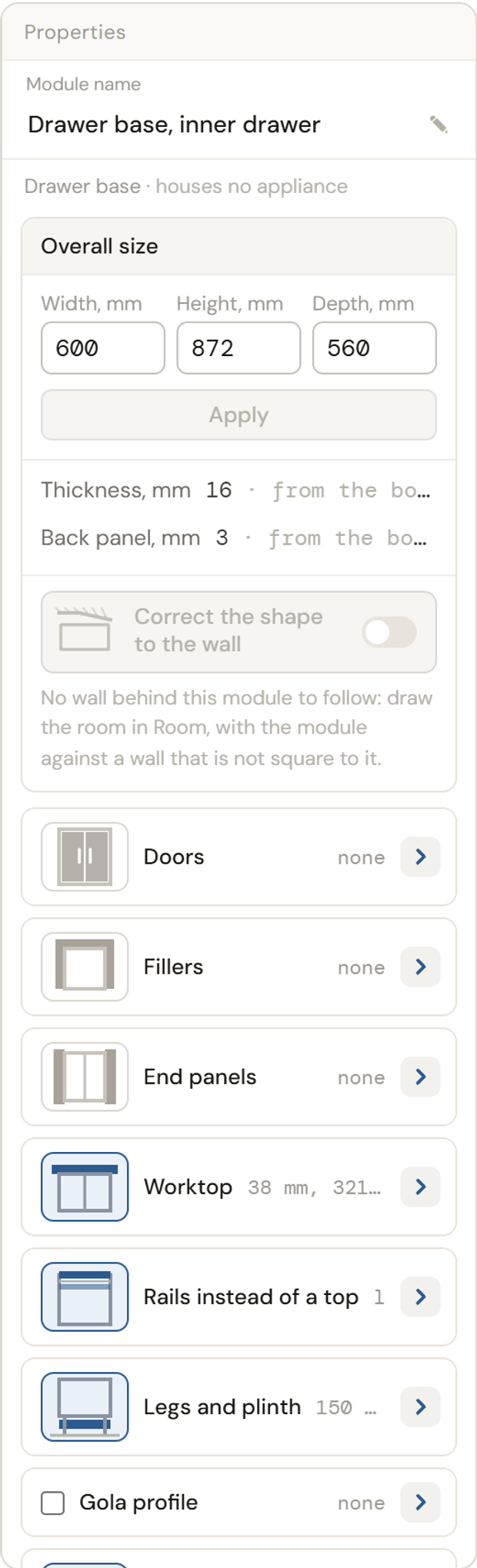
What is picked decides what the panel shows. For a module: its name, its overall size with Apply, the board and the back, then one card per feature — Doors, Top box, Fillers, End panels, Rails instead of a top, Legs and plinth, Joints, Worktop, Pelmet, Wall hangers, Gola profile — each opening to its own settings. For a section: what fills it and how it is divided. For a part: its size, its board, its edge banding by edge, its grain, and what the shop does to it after the saw. For a piece of hardware: the system it belongs to and its numbers.
The fields are typed and applied; there are no sliders. A module's width is its overall width — the measure that stands in the run, with end panels and fillers counted in — and the box inside is narrowed to keep it.
Doors
One leaf up to 600 wide, two over that, hung on the right by default; set the hand, the joint between leaves, and whether they are overlay or inset. Hinges come from the catalogue — Emuca and Blum Clip top, with Blumotion — and are counted by the leaf's height and weight and placed clear of the shelf pins and runner screws that share the 32 mm line. A leaf can be split at every fixed shelf, a door to each row. Push-to-open fits a Push Lite catch instead of a handle.
Drawers
A section filled with drawers gets a stack of fronts and, behind each, a box on runners: Emuca Vertex (40 or 60 kg), Vertex Push Sincro for push-to-open, Simplex, or Blum Merivobox. The Runners button opens a table of the systems with a 3D drawer of each; what will not fit the opening's depth is greyed. An inner drawer can hide behind the top front. The drawer bottom and back are their own 16 mm board.
Handles
A door or a drawer front takes a handle from the catalogue — profile, knob or bar, by series and size — drilled into the front where the series says. A handleless kitchen uses the Gola profiles instead: the L profile along the top of a base, the C profile between drawer fronts, the vertical profile on a tall unit, with the notches in the sides and the brackets counted. A milled J-profile grip in the front itself is the third way.
Interiors
Shelves on pins, fixed shelves, hanging rails (one, two or three, placed by rule), pull-out larders, waste bins, drawers in a wardrobe's column. A shelf longer than fifty thicknesses is flagged for sag; the Sag view paints every horizontal board by how far it will bend, empty or loaded.
The room
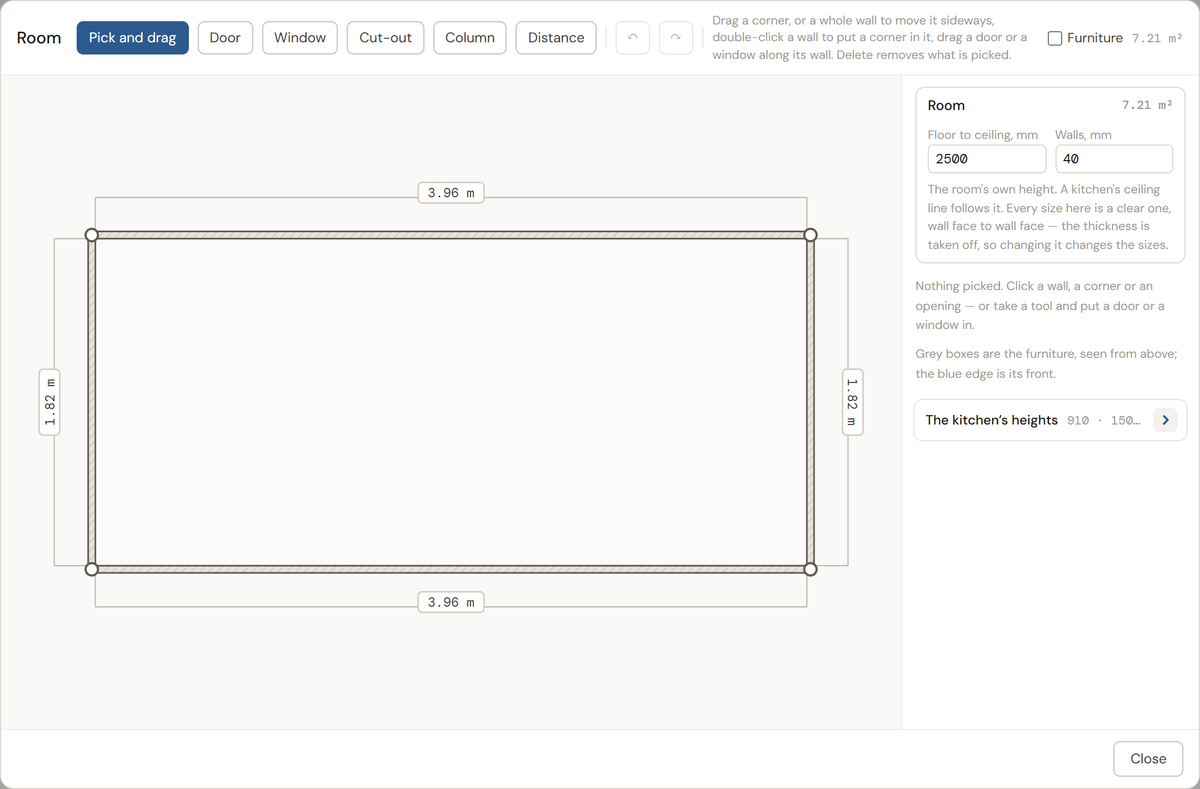
Room opens a plan. Draw the walls as a closed chain, type each wall's clear length, put in doors, windows, columns and cut-outs. The furniture is shown from above in grey. In the viewport the walls stand round the furniture, hiding when the camera is behind them. A wardrobe built into a niche brings its niche; a box put against a wall follows it, and a wall that is not square gets the box's sides cut to it. Doors that would hit a wall stop at the wall; drawers stop at a wall or a neighbour.
Materials
Every board slot — carcass, back, doors, drawer fronts, drawer box, worktop, pelmet, end panels — names a board. Without an account the boards are generic: white, light wood, dark wood, linen, at 16, 18 or 19 mm. Signed in, the boards come from your warehouse with their decor, their real sheet size, their price, and the edge band on the reel beside them. A board marked paintable can be set to a RAL and a sheen, and the paint is priced per m². Swap board in the Summary replaces one board with another across the whole project. The By board view paints every part in a flat colour per board with a legend, so you see what is cut from what.
Warnings
The counter in the toolbar lists what will not build: a panel longer than the sheet, an appliance niche that is too shallow, a drawer front shorter than its box allows, a door that hits a wall, a shelf that will sag. Each is written in words, with the numbers. Drilling cards and the cut plan ask you to read them first.
Presentation
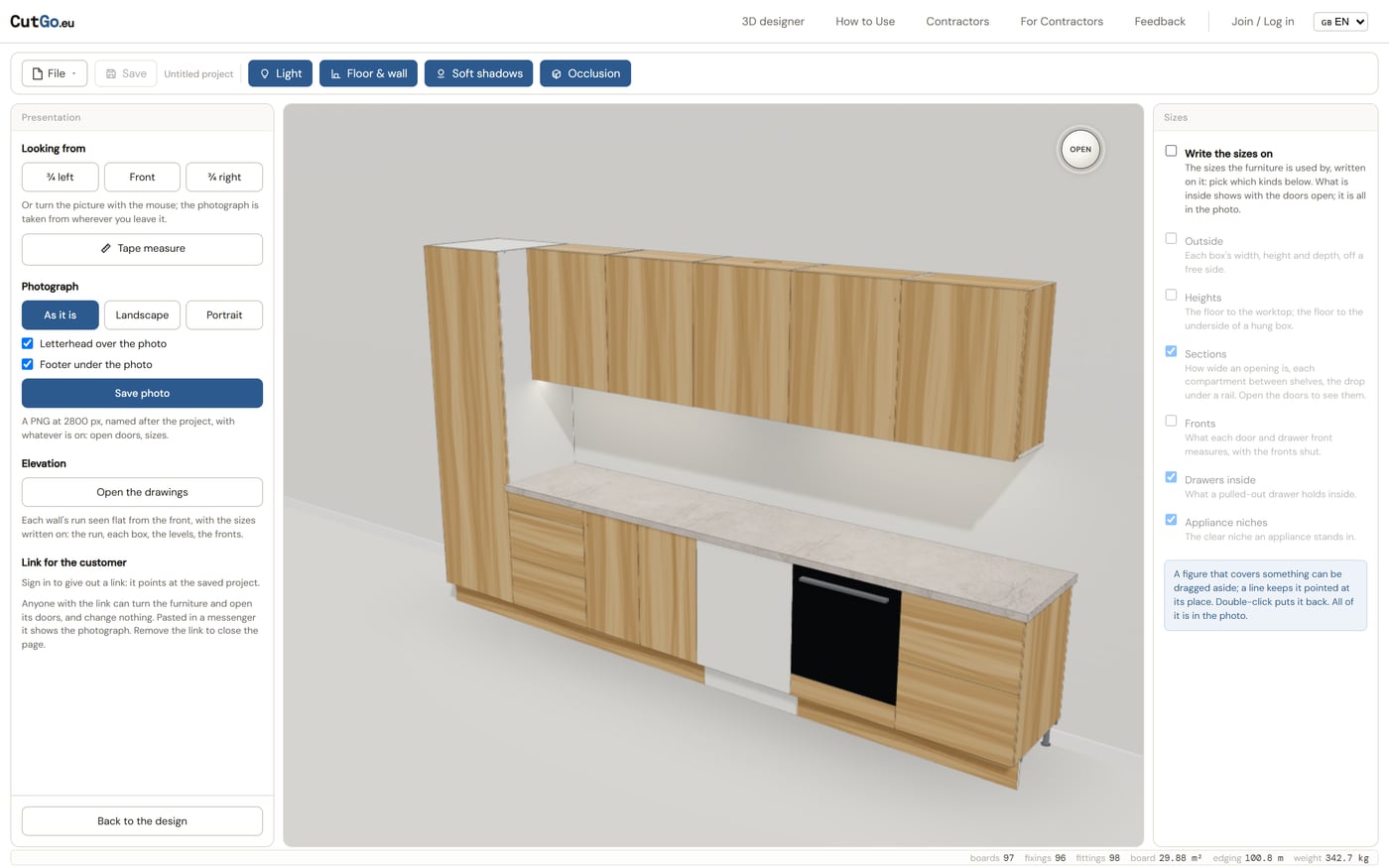
Presentation in the Summary tab turns the drawing into a picture: no grid, no helpers, a floor and a wall or the room's walls, soft shadows and ambient occlusion, the light in the furniture. Look from ¾ left, the front or ¾ right, open the doors with the dial, write the sizes on the furniture — outside, heights, sections, fronts, drawers, appliance niches — and Save photo: a PNG at 2800 px, with your letterhead over it and your address under it. Open the drawings gives each wall's run as an elevation with its sizes. Signed in, Make a link gives the customer a page where the furniture turns and its doors open on a phone.
What comes out
- Send to cut plan — every part goes to the cut optimizer with its board, its size, its grain and its banded edges, laid out on your sheets with the least waste. From there the job is priced by the workshops on the map and ordered. The cutting map and the parts list print as a PDF.
- Drilling cards — a page of settings first: which parts get a card of their own, which share a sheet six to a page, which are drilled only in the edge. Then the PDF: a card per part with the view, the bits and every hole dimensioned.
- Stone order — the worktops, splashbacks and island slabs in stone, each on its own sheet with the cut-outs dimensioned from one datum, for the stonemason.
- Router templates — the notches of the Gola sides as SVG or DXF, to cut on a laser or a CNC.
- The Summary — boards, banding, hardware, appliances and the cost; and from it the proposal for the customer, with its PDF and its link.
Read on: how the constructor builds a kitchen, drilling cards and shop documents, projects, stock and prices.